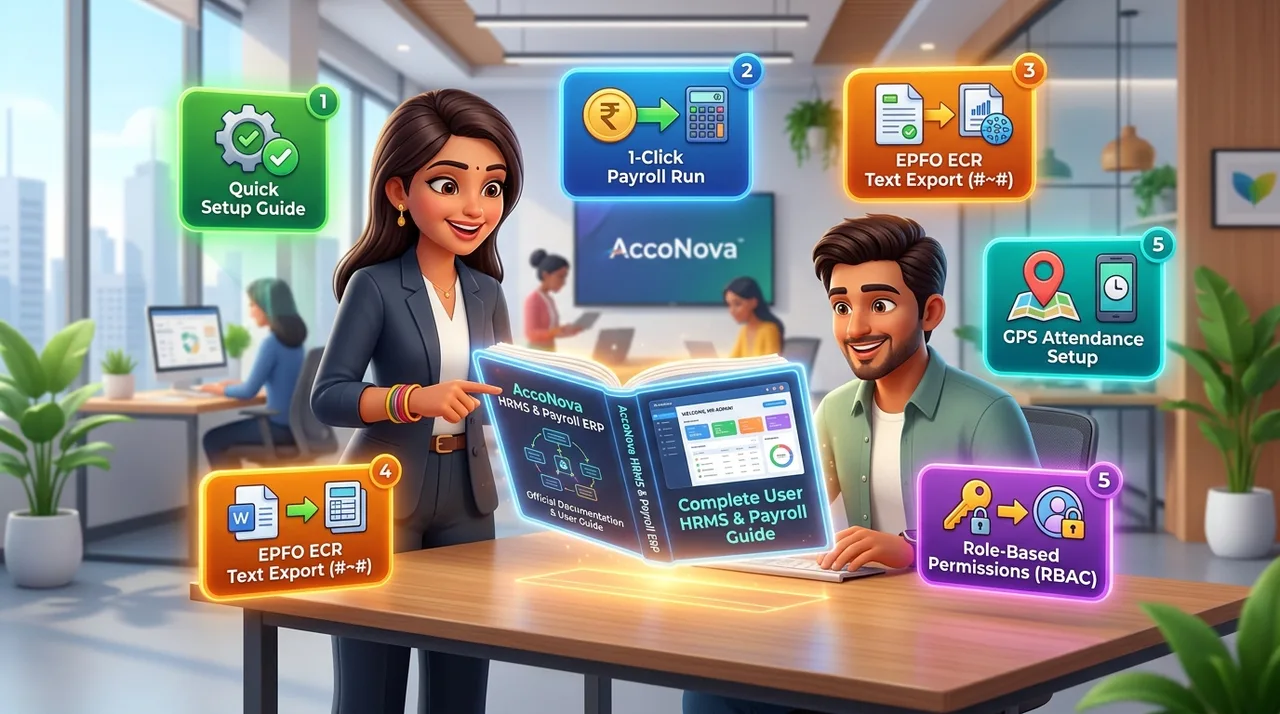
📖 AccoNova HRMS ERP — Complete User Manual
Version: 1.7.4
Last Updated: 2026-05-24
Product: AccoNova HRMS ERP — Multi-Tenant SaaS HR Management System
Audience: Company Admin, HR, Manager, Employee, Super Admin
📑 Table of Contents
- Introduction & Getting Started
- Authentication & Account Management
- Company Admin Portal
- HR Management (HRM) Portal
- Attendance & Time Tracking
- Leave Management
- Payroll Engine
- On-Duty (OD) Management
- Reimbursement System
- Loan & Advance Management
- Helpdesk & Ticketing
- Document Vault
- HR Letter Generation
- Asset Management
- Training & Development
- Policy Management
- Announcements
- Exit Management
- HR Analytics & Reporting
- Performance Management
- Recruitment Manager
- Tax Declaration
- Notification System
- Permission & Access Control
- Subscription & Billing
- Manager Portal
- Employee Self-Service (ESS) Portal
- Accounts & Finance Module
- Super Admin Panel
- Public Website Pages
Role Legend
| Icon | Role | Description |
|---|---|---|
| 🔴 | Company Admin | Company owner/administrator — full access to company setup, employees, permissions, subscription |
| 🟢 | HR | Human Resources manager — manages employees, attendance, payroll, leaves, approvals |
| 🟡 | Manager | Team/Department manager — approves leaves, OD, reimbursements, loans for team members |
| 🔵 | Employee | Regular employee — self-service for punch, leave, OD, reimbursement, profile |
| ⚪ | Super Admin | Platform administrator — manages all companies on the SaaS platform |
| 🟠 | Public | No login required — public-facing pages |
1. Introduction & Getting Started
1.1 What is AccoNova HRMS ERP?
AccoNova HRMS ERP is a Multi-Tenant SaaS (Software as a Service) platform that enables companies to digitally manage their HR operations. The system is cloud-based and can be accessed from any device — Desktop, Tablet, or Mobile.
1.2 System Requirements
| Requirement | Detail |
|---|---|
| Browser | Google Chrome (Latest), Firefox, Edge, Safari |
| Internet | Stable internet connection required |
| Camera | Required for attendance selfie (punch in/out) |
| GPS/Location | Must be enabled for GPS-based attendance |
| Device | Desktop, Laptop, Tablet, or Mobile Phone |
1.3 Portal Structure
AccoNova has 4 main portals. Based on your role, the system automatically displays the correct portal:
| Portal | Access | Purpose |
|---|---|---|
| Admin Dashboard | Company Admin | Company setup, employees, permissions, subscription |
| HRM Dashboard | HR Users | Attendance, payroll, leave, hiring, analytics |
| Manager Dashboard | Managers | Team approvals — leaves, OD, reimbursement, loans |
| Employee Dashboard | All Employees | Self-service — punch, leave, payslip, profile |
[!TIP] If you have multiple roles (e.g., Admin + HR), you can switch between portals using the View Switch button located in the top header.
1.4 URL Structure
| Page | URL |
|---|---|
| Login | /auth/login |
| Company Registration | /auth/register-company |
| Employee Registration | /auth/register-employee/{company_id} |
| Admin Dashboard | /hr/admin/ |
| HRM Dashboard | /hr/hrm/ |
| Manager Dashboard | /hr/manager/ |
| Employee Dashboard | /hr/employee/ |
2. Authentication & Account Management
2.1 Company Registration 🟠→🔴
Purpose: Register a new company on the AccoNova platform.
Path: /auth/register-company
Steps:
- Open the AccoNova website in your browser
- Click the “Register Company” button
- Fill in the following details in the form:
- Company Name — Official name of the company
- Admin Name — Full name of the admin user
- Email — Admin’s email address (this will be the login email)
- Password — Set a strong password (minimum 8 characters)
- Phone Number — Contact number
- GST Number (Optional) — Company’s GST registration number
- PAN Number (Optional) — Company’s PAN
- Address — Company’s registered address
- Country — Select from dropdown
- State — States will load after selecting the country
- CAPTCHA — Type the code displayed in the image
- Click the “Register” button
- A 6-digit OTP will be sent to your email — enter it on the OTP verification page
- Once the OTP is verified, your account will be activated
[!IMPORTANT] After registration, the system automatically creates the following:
- 10 Default Departments (HR, IT, Finance, etc.)
- 10-Level Designation Hierarchy (Executive to GM)
- 15 Indian Public Holidays
- 7 Leave Types (CL, EL, SL, etc.)
- Latest Income Tax Slabs (FY 2026-27)
- PT (Professional Tax) Slabs
- Default Head Office Work Location
- Standard Indian Payroll Structure
2.2 Employee Self-Registration 🟠→🔵
Purpose: Employees can fill in their details and submit a registration request on their own.
Pre-requisite: The Admin must have enabled employee registration.
Path: /auth/register-employee/{company_id}
Steps:
- Obtain the registration link from Admin/HR (unique URL with company ID)
- Open the link — the registration form will be displayed
- Fill in the following details:
- Personal Details: Name, Email, Phone, Date of Birth, Gender, Blood Group
- Address: Current Address, Permanent Address
- Bank Details: Bank Name, Account Number, IFSC Code
- Identity: PAN Number, Aadhar Number
- Documents: Profile Photo, PAN Card, Aadhar Card (upload)
- Password: Set a password for your account
- Solve the CAPTCHA
- Click “Submit Registration”
- Complete the email OTP verification
- Your profile will go into the “Pending Verification” queue
- HR/Admin will verify your profile — you will receive access once verified
[!NOTE] Until HR/Admin verifies the profile, the employee will not be able to log in. This is a security measure to ensure only genuine employees get access.
2.3 Login Process 🟠
Path: /auth/login
Steps:
- Open the Login page
- Enter your Email and Password
- Type the CAPTCHA code (displayed in the image)
- Click the “Login” button
- If 2FA is enabled:
- A 6-digit OTP will be sent to your email
- Enter the OTP and verify
- Upon successful login, you will be redirected to your Dashboard
[!TIP] After login, the system automatically redirects you to the correct dashboard based on your role:
- Admin role → Admin Dashboard
- HR role → HRM Dashboard
- Manager role → Manager Dashboard
- Employee role → Employee Dashboard
2.4 Two-Factor Authentication (2FA) 🔴🟢🟡🔵
Path: /auth/2fa
How it works:
- After login, if 2FA is enabled for the company, an OTP will be sent to the registered email
- Enter the OTP and verify
- Didn’t receive the OTP? Click the “Resend OTP” button
- The OTP is valid for a limited time period
2.5 Forgot Password & Reset 🟠
Path: /auth/forgot-password
Steps:
- Click the “Forgot Password?” link on the Login page
- Enter your registered email address
- Click “Send OTP”
- An OTP will be sent to your email
- Enter the OTP and verify
- Enter your New Password and Confirm Password
- Click “Reset Password”
- Upon successful password change, you will be redirected to the login page
2.6 CAPTCHA Protection 🟠
- An image-based CAPTCHA is displayed on Login and Registration forms
- The CAPTCHA generates a random code displayed in an image
- It prevents bot attacks and brute-force login attempts
- If the CAPTCHA is not clearly visible, refresh the page — a new CAPTCHA will be generated
2.7 Multi-Company Context Switching 🔴
Path: Header → Company Name Dropdown
How it works:
- If an Admin manages multiple companies/branches
- The current company name is displayed in the top header
- Click the dropdown → all linked companies will appear
- Click on any company to switch to that company’s context
- After switching, all data displayed will pertain to the selected company
2.8 View Switching 🔴🟢🟡🔵
Path: Header → View Switch Button
- Users with multiple roles can switch between portals
- Example: A user who is both an Admin and HR can switch between both dashboards
- URL:
/hr/switch-view/{role}
2.9 Logout 🔴🟢🟡🔵
Path: Header → Profile → Logout
- Click on the profile icon/name in the top-right corner
- Select “Logout”
- The session will be destroyed and you will be redirected to the login page
3. Company Admin Portal 🔴
3.1 Admin Dashboard Overview
Path: /hr/admin/
The Admin Dashboard displays the following widgets:
- Total Employees — Count of active employees
- Pending Verifications — Self-registered employees awaiting verification
- Departments Count — Total number of departments
- Today’s Attendance — Number of employees who have punched in
- Subscription Status — Current plan and validity
- Quick Actions — Shortcuts to common tasks
3.2 Company Profile — Create New Company/Branch
Path: /hr/admin/create-company
Steps:
- Click “Companies” in the sidebar
- Click the “+ Create Company” button
- Fill in the form:
- Company Name — Name of the branch/company
- Company Type — Pvt Ltd, LLP, Proprietorship, etc.
- GST Number — GST registration
- PAN Number — Company PAN
- Address, City, State, Pin Code
- Phone, Email
- Logo Upload — Company logo (stored on B2 Cloud)
- Click “Save Company”
3.3 Company Profile — Edit
Path: /hr/admin/edit-company/{id}
Steps:
- Go to the “Companies” list
- Click the Edit icon (pencil)
- Update the required details
- You can also update the geo-location (latitude/longitude) for the work location
- Click “Update”
3.4 Company Groups Management
Path: /hr/admin/company-groups
Purpose: Link multiple branches into a single group (e.g., for shared holidays).
Steps:
- Open the “Company Groups” page
- Click “+ Create Group”
- Enter the group name
- Select the companies to include in this group
- Click “Save”
3.5 Companies List (Multi-Branch View)
Path: /hr/admin/companies
- List of all registered companies/branches
- Each company has Edit and Switch options
- Employee count per company is displayed
3.6 Employee Management (Admin Level)
Path: /hr/admin/employees
Features:
- View All Employees — List of active employees with search & filter
- Add Employee —
/hr/admin/add-employee— Manually add an employee (same form as registration) - Edit Employee —
/hr/admin/edit-employee/{id}— Modify any employee’s details - Print Employee Profile —
/hr/admin/employees/print/{id}— Branded PDF-style profile - Mark as Left — Mark an employee as “Ex-Employee” with exit date & reason
- Toggle HR Role — Grant or revoke HR access for any employee
- Ex-Employees List —
/hr/admin/employees/ex— List of all former employees
3.7 Employee Verification & Review Queue
Path: /hr/admin/employee/review/{id}
Steps:
- The “Pending Verifications” widget on the Dashboard will show the count
- Click to view the list of pending employees
- Click on an employee’s name → the full review page will open
- Review all details — personal, bank, documents
- You can edit details if they are incorrect
- “Verify” button — Approve the employee (they will receive login access)
- “Reject” button — Reject the employee
3.8 Toggle Registration On/Off
Path: /hr/admin/toggle-reg (or /hr/hrm/toggle-reg)
- Enable/disable employee self-registration
- When enabled, the registration URL will be active
- When disabled, no new registrations will be accepted
3.9 Team Management
Path: /hr/admin/teams
Steps:
- Open the “Teams” page
- Click “+ Create Team”
- Fill in the form:
- Team Name
- Team Lead — Select from dropdown
- Department — Related department
- Click “Save”
Team Members Management:
- Path:
/hr/admin/teams/members - Add/remove employees from teams
- Assign team leads
Edit Team:
- Path:
/hr/admin/edit-team/{id} - Update team details
Delete Team:
- Path:
/hr/admin/teams/delete/{id}
3.10 Organization Hierarchy View
Path: /hr/admin/hierarchy
- Visual tree structure showing organizational reporting lines
- Department → Team → Employees structure
- Interactive — expand/collapse nodes
3.11 Permission Matrix (ACL)
Path: /hr/admin/permissions
Purpose: Set individual permissions for each employee.
How it works:
- Open the Permission Matrix page
- A visual grid will be displayed — rows = employees, columns = permissions
- Each permission has a toggle (On/Off) switch
- Available permissions include:
hr.employees.add— Can add new employeeshr.employees.manage— Can manage employee recordshr.attendance.correct— Can correct attendancehr.payroll.manage— Can manage payrollhr.leaves.manage— Can manage leaves- And more…
- Clicking a toggle instantly saves the permission (via AJAX)
[!IMPORTANT] Only the Admin can access the Permission Matrix. It provides granular control — you can assign/revoke specific permissions for each individual employee.
3.12 Audit Logs
Path: /hr/admin/audit
- Record of all changes made in the system
- Who (by whom), When (timestamp), What (what was changed), IP Address
- Before/After data snapshot (JSON format)
- Filterable by date, user, action type
3.13 Location Sync — Generate QR
Path: /hr/admin/location-sync/generate
- Generate a QR code for attendance purposes
- Employees can scan this QR from their mobile to mark attendance
- The QR code contains a company-specific sync ID
4. HR Management (HRM) Portal 🟢
4.1 HRM Dashboard Overview
Path: /hr/hrm/
The Dashboard displays the following widgets/cards:
- Today’s Attendance Summary — Present, Absent, Late, On Leave counts
- Pending Leave Requests — Leave applications awaiting approval
- Pending OD Requests — On-Duty approval queue
- Pending Verifications — New employee registrations
- Department-wise Breakdown — Attendance breakdown by department
- Quick Action Buttons — Shortcuts to common tasks
- Recent Activity Feed — Latest system activities
4.2 Employee Management (HR Level)
Employees can also be managed from the HR portal (if the user has the required permissions):
Path: /hr/hrm/employees
- View All Employees — Search, filter by department, designation
- Add Employee —
/hr/hrm/add-employee(requireshr.employees.addpermission) - Edit Employee — Update employee details
- Print Profile — Professional employee profile printout
- Mark as Left — Initiate the exit process
- Ex-Employees —
/hr/hrm/employees/ex - Toggle HR — Grant/revoke HR role for an employee
4.3 Department Management
Path: /hr/hrm/departments
Steps to Create a Department:
- Open the “Departments” page
- Click the “+ Add Department” button
- In the modal/form:
- Department Name — e.g., “Human Resources”, “IT”, “Finance”
- HOD (Head of Department) — Optional, select from dropdown
- Click “Save”
Edit Department:
- Click the edit icon in the department list
- Update the name or HOD
- Click “Update”
4.4 Designation Management
Path: /hr/hrm/designations
Steps to Create a Designation:
- Open the “Designations” page
- Click “+ Add Designation”
- In the modal:
- Designation Title — e.g., “Software Engineer”, “HR Manager”
- Late Minutes Limit (Monthly) — Optional, monthly late minutes allowed
- Click “Save”
4.5 Work Location Management
Path: /hr/hrm/work-locations
Purpose: Define office locations from where employees can punch their attendance.
Steps:
- Open the “Work Locations” page
- Click “+ Add Location”
- Fill in the details:
- Location Name — e.g., “Head Office”, “Branch - Pune”
- Address — Full address
- Latitude — GPS latitude coordinate
- Longitude — GPS longitude coordinate
- Geo-fence Radius (meters) — The radius (in meters) within which punching is allowed
- Click “Save”
[!TIP] Setting the geo-fence radius is important. If the radius is set to 100 meters, the employee can only punch in from within 100 meters of the location. A larger radius allows employees in remote areas to punch as well.
4.6 HRM Settings — Attendance Configuration
Path: /hr/hrm/settings
The Settings page contains the following sections:
4.6.1 Week Off Configuration
- Week Off Days — Select which days are week offs (e.g., Saturday, Sunday)
- Alternate Week Off — Configure alternate Saturday offs if applicable
4.6.2 Late Coming Policy
- Policy Mode:
- Count-Based — e.g., 3 late arrivals = 0.25 day deduction
- Minutes-Based — e.g., 60 total late minutes = 0.25 day deduction
- Buffer Minutes — Grace period — minutes within which lateness is not counted
- Deduction Threshold — Number of late occurrences/minutes before deduction applies
- Deduction Amount — Amount to deduct (e.g., 0.25 day, 0.5 day)
4.6.3 Sandwich Policy
- Enable/Disable — Turn the sandwich policy on/off
- If enabled: When an employee is absent on Friday + Monday → Saturday/Sunday will also be counted as absent
4.6.4 Overtime (OT) Configuration
- Enable OT — Turn OT tracking on/off at the company level
- OT Rate Mode:
- Fixed — ₹X per hour
- Percentage — X% of Basic/Gross salary
- Calculation Base — Basic salary or Gross salary
- Buffer Minutes — Minutes after shift hours before OT calculation begins
4.6.5 Shift Management
- Create Shift:
- Shift Name (e.g., “Morning”, “Night”, “General”)
- Start Time
- End Time
- Working Hours
- Delete Shift — Remove an existing shift
- A default shift can also be set
4.6.6 Approval Levels
- Leave Approval Levels — Number of levels in the approval chain
- Level 1: Manager
- Level 2: HR
- Direct HR (skip manager)
4.6.7 Advanced Leave Policy Settings
The HRM Settings page also includes these additional leave policy controls:
- Leave Encashment — Enable/Disable — Facility to encash unused leaves into salary
- Carry Forward — Enable/Disable — Carry remaining leave balance to the next year
- Carry Forward Limit — Maximum number of days that can be carried forward (e.g., 30)
- Leave Accrual Method:
- Upfront — Full annual quota credited at the start of the year
- Monthly — Pro-rata credit every month
- Backdate Leave Limit — Number of days in the past for which leave can be applied (e.g., 3 days)
- Short Leave Duration Hours — Maximum duration of a short leave in hours (e.g., 2.0 hours)
- Short Leave on Absent Payable — Whether a short leave used on an absent day counts as a payable day
- Include Week-offs in Leave — Whether week-offs falling within a leave period are counted as leave days
- Include Holidays in Leave — Whether holidays falling within a leave period are counted as leave days
Special Leave Toggles:
- Enable Maternity Leave — Turn the maternity leave feature on/off
- Enable Paternity Leave — Turn the paternity leave feature on/off
- Enable Menstrual Leave — Turn the menstrual leave feature on/off
Professional Tax:
- Enable PT — Turn Professional Tax deduction on/off
4.7 Shift Roster — Weekly Grid View
Path: /hr/hrm/ (Shift Command Center section)
Purpose: Assign specific shifts to employees on a week-by-week basis.
How to use:
- Open the Shift Roster page
- Select the week (using the date picker)
- A grid view will be displayed — Rows = Employees, Columns = Days (Mon-Sun)
- Select a shift from the dropdown in each cell
- “Copy Row” — Copy one employee’s entire week of shifts
- Changes are auto-saved
- The attendance engine will automatically calculate based on the assigned shifts
5. Attendance & Time Tracking
5.1 GPS-Based Punch In/Out 🔵
Path: /hr/employee/punch
Steps:
- Click the “Punch In” button from the Employee Dashboard (or “Attendance Punch” from the sidebar)
- The browser will request location permission → Click “Allow”
- The browser will request camera permission → Click “Allow”
- A selfie will be captured from the camera (automatic or manual click)
- The GPS location will be detected automatically
- The system will verify:
- Is the employee within the geo-fence of the assigned work location?
- ✅ If yes → The punch record will be saved with timestamp, GPS coordinates, and selfie photo
- ❌ If no → An error message will appear: “You are outside the allowed location”
- For Punch Out, follow the same process — the second punch will count as a punch-out
[!WARNING]
- If location services are turned OFF, the punch will not work
- If camera access is denied, the selfie cannot be captured
- Attempting to punch from outside the geo-fence will result in a rejected punch
🔒 Attendance Anti-Fraud Security Features:
AccoNova’s punch system includes the following advanced security checks:
| Feature | Description |
|---|---|
| Device Binding | The employee’s device ID is saved during the first punch. Subsequent punches are only allowed from the same device. Attempting to punch from a different device will trigger a “Fraud Detected” error. |
| Mock Location Detection | If a fake GPS app is running on the phone, the system will detect it and reject the punch. Strict Mode can be toggled on/off at the company level. |
| IP Whitelisting | The Admin can set office IP addresses. Only punches from whitelisted IPs will be allowed. Attempts from unauthorized IPs will be logged as errors. |
| GPS Accuracy Check | If GPS accuracy is very low (e.g., 150m+ error), the punch will be rejected. The company threshold is configurable. |
| Network Time Sync | The system uses the server clock instead of the device clock (synced via TimeAPI.io). Employees cannot manipulate punch times by changing their phone’s clock. |
| Selfie Verification | If selfie-based punching is enabled for the company, a live camera photo is mandatory with every punch. Photos are stored on B2 Cloud. |
| Geo-fence Validation | The exact distance is calculated using the Haversine formula. Punching from outside the assigned work location’s radius is not possible. |
5.2 Attendance Dashboard — Daily View 🟢
Path: /hr/hrm/attendance
Features:
- Date Selector — Select any date (default: today)
- Department Filter — View attendance for a specific department
- Attendance List: For each employee:
- Name, Department, Designation
- Punch In Time
- Punch Out Time
- Working Duration
- Status (Present, Absent, Half-Day, Late, On Leave, OD, Holiday, Week Off)
- Late Minutes (if applicable)
- Summary Cards: Total Present, Absent, Late, On Leave, OD
- Print Daily Attendance —
/hr/hrm/attendance/print— Printable format
5.3 Attendance Report — Monthly Summary 🟢
Path: /hr/hrm/attendance-report
Features:
- Month/Year Selector — Select any month
- Department Filter — Filter by department
- Report Table: Monthly summary for each employee:
- Total Present Days
- Total Absent Days
- Total Leave Days
- Total Holidays
- Total Week-offs
- Total Half-Days
- Total Late Count
- Total Late Minutes
- Total OT Hours
- Print —
/hr/hrm/attendance-report/print— Print-friendly format - Export to Excel —
/hr/hrm/attendance-report/export-excel— Excel download
5.4 Manage Attendance — Day-by-Day Grid 🟢
Path: /hr/hrm/manage-attendance
Purpose: View detailed daily attendance records for a specific employee for a given month.
Features:
- Employee Selector — Choose an employee from the dropdown
- Month/Year Selector
- Calendar Grid View:
- Punch in/out time for each day
- Working duration
- Status (P, A, L, H, WO, HD, OD)
- Late minutes
- Early out minutes
- OT hours
- Print —
/hr/hrm/manage-attendance/print— Printable attendance ledger
5.5 Attendance Map — GPS Visualization 🟢
Path: /hr/hrm/attendance-map
Purpose: Visualize on a map where employees punched in from.
Features:
- Date Selector — Select any date
- Interactive Map (Leaflet.js based):
- Markers show punch locations
- Clicking a marker → Employee name, punch time, photo popup
- Cluster view for multiple punches in the same area
- Work location boundaries are also displayed
5.6 Manual Punch / Attendance Correction 🟢
Path: /hr/hrm/ (via “Save Manual Punch” action)
Purpose: For situations where an employee forgets to punch or has a device issue.
Pre-requisite: The user must have the hr.attendance.correct permission.
Steps:
- Go to the “Manual Punch” option on the Attendance page
- Select the Employee
- Select the Date
- Enter the Punch In Time
- Enter the Punch Out Time (optional)
- Click “Save”
- The system will create/update the attendance record
5.7 Attendance Sync Engine 🟢
Path: /hr/hrm/sync-all-attendance
Purpose: Recalculate and synchronize the entire month’s attendance data.
Steps:
- Select the Month/Year
- Click the “Sync All Attendance” button
- The system will recalculate attendance for all employees
- Updated data will be written to the
attendance_reportstable - This ensures that payroll receives accurate data
[!IMPORTANT] Always sync attendance before generating payroll. This step ensures that all attendance data is up-to-date.
5.8 Mobile QR Sync 🔴→🔵
Path (Admin): /hr/admin/location-sync/generate
Path (Employee): /hr/location-sync/mobile/{sync_id}
Steps:
- Admin: Generate the QR code
- Share the QR code with employees (print or display)
- Employee: Scan the QR code using their mobile
- A mobile-friendly punch interface will open
- Punch in using GPS + Selfie capture
6. Leave Management
6.1 Leave Types Configuration 🟢
Path: /hr/hrm/leave-types
Purpose: Define the company’s leave policy.
Steps to Create a Leave Type:
- Open the “Leave Types” page
- Click “+ Add Leave Type”
- Fill in the form:
- Leave Type Name — e.g., “Casual Leave”, “Earned Leave”, “Sick Leave”
- Short Code — e.g., “CL”, “EL”, “SL”
- Annual Quota — Number of days allowed per year
- Carry Forward — Whether the remaining balance carries over to the next year
- Paid/Unpaid — Whether this leave is paid or unpaid (LWP)
- Click “Save”
Edit Leave Type:
- Click the edit icon in the list
- Update the details
- Click “Update”
6.2 Leave Balance Management & Bulk Credit 🟢
Path: /hr/hrm/leave-balances
Purpose: Assign leave balances to employees.
Individual Balance Set:
- Select the Employee
- Enter the balance for each leave type
- Click “Save”
Bulk Credit (All Employees at Once):
- Click the “Bulk Credit Leaves” button (
/hr/hrm/bulk-credit-leaves) - Select the leave type
- Enter the credit amount (e.g., 12 days)
- Click “Credit to All”
- The balance will be credited to all active employees
[!TIP] Use Bulk Credit to credit leaves to all employees at the start of the financial year. Individual adjustments can be made later.
6.3 Holiday Calendar Management 🟢
Path: /hr/hrm/holidays
Steps:
- Open the “Holidays” page
- Click “+ Add Holiday”
- Holiday Name — e.g., “Republic Day”, “Diwali”
- Date — Select the holiday date
- Click “Save”
[!NOTE] Holidays are automatically reflected in attendance calculations — an employee is not marked absent on a holiday; it is considered a paid day.
6.4 Leave Application — Employee Apply 🔵
Path: /hr/employee/leave
Steps:
- Click the “Leaves” menu from the Employee Dashboard
- Click the “Apply Leave” button
- Fill in the form:
- Leave Type — Select from dropdown (CL, EL, SL, LWP, etc.)
- From Date — Leave start date
- To Date — Leave end date
- Leave Duration:
- Full Day
- First Half (morning only)
- Second Half (afternoon only)
- Short Leave (quarter day)
- Reason — Write the reason for the leave
- Click “Apply”
- The leave request will go to the Manager’s approval queue
Current Balance: A leave balance card is displayed on the page showing the available leaves for each type.
Delete Pending Leave:
- Only leaves with Pending status can be deleted
- Approved or Rejected leaves cannot be deleted
6.5 Comp-Off (Compensatory Off) Claim 🔵
Path: /hr/employee/leave → “Claim Comp-Off”
Steps:
- Navigate to the “Claim Comp-Off” section on the Leave page
- Select the Holiday Date on which you worked
- The system will verify that the date was a holiday and that you recorded attendance
- Upon successful verification → Comp-Off balance will be credited
- You can now apply for leave using the Comp-Off leave type
6.6 Leave Approval — Manager Level 🟡
Path: /hr/manager/leaves
Steps:
- Manager Dashboard → “Leaves” menu
- A list of pending leave requests will be displayed (only for your team members)
- Each request shows:
- Employee Name
- Leave Type
- Dates (From - To)
- Duration (days)
- Reason
- Current Leave Balance
- “Approve” — Approve the leave
- “Reject” — Reject the leave
- Upon approval, the leave will go to HR’s approval queue (if multi-level approval is enabled)
6.7 Leave Approval — HR Level 🟢
Path: /hr/hrm/leaves
Steps:
- HRM Dashboard → “Leaves” menu
- All pending leave requests will be displayed (Manager approved + Direct to HR)
- Review each request
- “Approve” / “Reject” / “Delete”
- After final approval, the leave balance will be deducted
- The employee will receive a notification
7. Payroll Engine
7.1 Payroll Dashboard & Configuration 🟢
Path: /hr/hrm/payroll
The Payroll Engine page contains the following sections:
7.1.1 Salary Structure Settings
- Basic Salary % — e.g., 60% of CTC
- HRA % — e.g., 30% of Basic
- Conveyance Allowance — Fixed amount or percentage
- Special Allowance — Remaining amount
7.1.2 Statutory Settings
- PF (Provident Fund):
- Employee contribution %
- Employer contribution %
- PF ceiling amount
- ESI (Employee State Insurance):
- Employee contribution %
- Employer contribution %
- ESI ceiling (gross salary limit)
- TDS:
- Auto-calculate based on tax slabs
- Or manual TDS amount
- LWF (Labour Welfare Fund):
- Enable/disable
- Amount settings
7.2 PT (Professional Tax) Slabs 🟢
Path: /hr/hrm/pt-slabs
Steps:
- Open the “PT Slabs” page
- State-wise PT slabs are pre-configured (auto-seeded on registration)
- “+ Add Slab” — Add a new slab:
- Min Salary — Minimum gross salary
- Max Salary — Maximum gross salary
- PT Amount — Deduction amount
- Click “Save”
- Delete — Remove a slab
7.3 Income Tax Slabs 🟢
Path: /hr/hrm/payroll → Tax Slabs Section
- The system comes pre-loaded with the latest FY 2026-27 tax slabs
- Tax slabs can be edited
- Click “Save Tax Slabs” to update
7.4 Monthly Payroll Generation 🟢
Path: /hr/hrm/payroll → Generate Section
Steps:
- Select the Month/Year
- Click the “Generate Payroll” button
- The system will process the following:
- Pull attendance data (from attendance_reports)
- Calculate payable days (present + paid leave + holidays + week-offs)
- Calculate prorated salary (payable days / total days × CTC)
- Calculate deductions:
- PF (Employee + Employer)
- ESI (if applicable)
- PT (Professional Tax — slab based)
- TDS (Income Tax)
- Late coming penalties
- LWP deductions
- Loan EMI (if an active loan exists)
- Add OT earnings (if enabled)
- The salary sheet will be generated
[!WARNING] Before generating payroll:
- Complete the Attendance Sync
- Ensure no leave approvals are pending
- Ensure all OD approvals are complete
7.5 Salary Sheet View 🟢
Path: /hr/hrm/payroll/salary-sheet
Features:
- Month/Year-wise salary sheet
- For each employee:
- Name, Department, Designation
- CTC, Basic, HRA, Allowances
- Gross Earnings
- PF, ESI, PT, TDS Deductions
- Late Penalty, LWP Deduction
- Net Payable (Take Home)
- OT Earnings
- Payable Days, Present Days
- Total row — Company-wide totals
- Edit — Adjust an individual employee’s salary
7.6 Salary Sheet — Print 🟢
Path: /hr/hrm/payroll/print
- Professional, branded salary sheet printout
- Company logo, header, all components
- Print button → Browser print dialog
7.7 Salary Sheet — Export to Excel 🟢
Path: /hr/hrm/payroll/export-excel
- Download the complete salary data as an Excel file
- All columns included — ready for bank upload
- Accountant-friendly format
7.8 Payslip View & Download 🔵
Path: /hr/employee/ → Dashboard → Payslip Section
Download: /hr/employee/payslip/download/{employee_id}/{month}
Employee Steps:
- Open the Employee Dashboard
- The Recent Payslips section will show the latest months
- Click on any month
- The payslip details will be displayed:
- Earnings: Basic, HRA, Conveyance, Special Allowance, OT
- Deductions: PF, ESI, PT, TDS, Late Penalty
- Net Pay (Take Home)
- Company details, employee details
- “Download / Print” button → PDF-style payslip
Alternative Path: /hr/payroll/payslip or /hr/payroll/payslip/{month}
7.9 Bulk Update Allowances 🟢
Path: /hr/hrm/payroll → Bulk Update Section
- Update allowances for all employees at once
- Change by percentage or fixed amount
- “Bulk Update” → All employees’ salary structure will be updated
7.10 Finalize Payroll 🟢
Path: /hr/hrm/payroll → Finalize Button
- Once payroll is finalized, no further changes can be made
- This step ensures that the payroll is locked for the month
- Payslips are generated only from finalized payroll
7.11 Salary Revision Audit 🔴🟢
Path: /hr/audit-revision
Purpose: Track the history of salary changes.
- A record of every salary change (CTC update, allowance modification)
- Before vs After values are displayed
- Who changed, When changed
- Detailed view:
/hr/audit-details/{id}
8. On-Duty (OD) Management
8.1 OD Application — Employee Apply 🔵
Path: /hr/employee/od
Steps:
- Open the “On Duty” page
- Click “+ Apply OD”
- Fill in the form:
- Date — Date of the OD
- Time Range — Start time to End time
- Location — Where you are going
- Client Details — Which client the meeting is with
- Instructions/Reason — Describe the purpose of the OD in detail
- Full Day / Partial — Full day OD or only a few hours
- Click “Submit”
- The OD request will go to the Manager’s approval queue
My OD History: The page displays all past OD requests with their status (Pending, Approved, Rejected)
8.2 OD Print — Individual 🔵
Path: /hr/employee/od/print/{id}
- Print an individual OD slip
- Branded format with company logo
- Details: Employee, Date, Time, Location, Client, Status
8.3 OD Print — Batch 🔵
Path: /hr/employee/od/print-batch
- Print multiple OD slips at once
- Select the date range
- A batch printout will be generated
8.4 OD Approval — Manager Level 🟡
Path: /hr/manager/od
Steps:
- Manager Dashboard → “OD Requests”
- Pending OD requests from team members will be displayed
- Review the details
- “Approve” / “Reject”
- Approved OD → Goes to HR’s queue
8.5 OD Approval — HR Level 🟢
Path: /hr/hrm/od
Steps:
- HRM Dashboard → “OD Approvals”
- Manager-approved OD requests will be displayed
- Perform the final review
- “Approve” / “Reject”
- Approved OD will be automatically adjusted in attendance:
- Late-in will not be counted
- Early-out will not be counted
- Working hours will be adjusted
9. Reimbursement System
9.1 Reimbursement Settings 🟢
Path: /hr/reimbursement/settings
9.1.1 Vehicle Types & Per-Km Rates
- Click “+ Add Vehicle Type”
- Enter the vehicle type name (e.g., “Two Wheeler”, “Four Wheeler”, “Auto”)
- Rate per KM — ₹X per kilometer
- Click “Save”
9.1.2 Designation-wise Vehicle Entitlements
- Set the allowed vehicle type for each designation
- Example: “Manager” → “Four Wheeler” allowed, “Executive” → “Two Wheeler” allowed
- Click “Save”
9.2 Expense Item Add 🔵
Path: /hr/employee/reimbursement
Steps:
- Open the “Reimbursement” page
- Click “+ Add Expense Item”
- Fill in the form:
- Date — Date of the expense
- Category — Travel, Food, Accommodation, Misc, etc.
- Description — Details of the expense
- Amount — ₹ amount (minimum ₹1, negative values not allowed)
- Receipt Upload — Upload the bill/receipt photo (stored on B2 cloud)
- Click “Save Item”
- The item will be added to the expense list (the claim has not been submitted yet)
9.3 Expense Claim Submission 🔵
Path: /hr/employee/reimbursement → Submit Claim
Steps:
- Add multiple expense items (as described in the previous step)
- Items are automatically grouped into a single claim
- The total amount will be displayed
- Click “Submit Claim”
- The claim status will change to “Pending” → It will go to the Manager’s approval queue
9.4 Claim Delete & Item Delete 🔵
- Delete Item: Only un-submitted items can be deleted →
/hr/employee/reimbursement/delete-item/{id} - Delete Claim: Only Pending claims can be deleted →
/hr/employee/reimbursement/delete-claim/{id}
9.5 Claim Print & Voucher 🔵
Path: /hr/employee/reimbursement/print-claim/{claim_id}
- Professional reimbursement voucher printout
- All items listed with dates, amounts, categories
- Total claim amount
- Company branding
9.6 Reimbursement Approval — Manager Level 🟡
Path: /hr/manager/reimbursement
Steps:
- Manager Dashboard → “Reimbursements”
- Pending claims from team members will be displayed
- Review all items in the claim details
- Check the receipts/bills
- “Approve” / “Reject”
9.7 Reimbursement Approval — HR Level 🟢
Path: /hr/reimbursement/approvals
Steps:
- HRM → “Reimbursement Approvals”
- Manager-approved claims will be displayed
- Perform the final review
- “Approve” / “Reject”
- Approved claims will be reflected in the Accounts module (via API)
10. Loan & Advance Management
10.1 Employee View — My Loans 🔵
Path: /hr/employee/loans
- List of your loan applications
- Status: Pending, Manager Approved, HR Approved, Disbursed, Repaying, Closed
- Loan details: Amount, EMI, Remaining balance
10.2 Loan Application 🔵🟢
Path: Via HR or Employee portal
Steps:
- Navigate to the Loan section
- Click “Apply for Loan/Advance”
- Fill in the form:
- Loan Amount — ₹ amount
- Reason/Purpose — Purpose of the loan
- EMI Preference — Monthly EMI amount (optional)
- Click “Submit”
10.3 Loan Approval — Manager Level 🟡
Path: /hr/manager/loans
Steps:
- Review pending loan requests
- Check the amount and reason
- “Approve” / “Reject”
10.4 Loan Approval — HR Level 🟢
Path: /hr/hrm/loans
Steps:
- HRM → “Loans” page
- All loan applications will be displayed with their status
- Review Manager-approved loans
- Set the EMI schedule
- “Approve” → Status updates
- Status tracking: Pending → Manager Approved → HR Approved → Disbursed → Repaying → Closed
[!NOTE] The EMI for approved loans is automatically deducted from payroll every month.
11. Helpdesk & Ticketing
11.1 Employee Ticket Creation 🔵
Path: /hr/employee/tickets
Steps:
- Open the “Tickets” page
- Click “+ Create Ticket”
- Fill in the form:
- Subject — Title of the issue
- Description — Detailed description of the issue
- Priority — Low, Medium, High, Urgent
- Category — IT, HR, Admin, Facilities, etc.
- Click “Submit”
- A ticket will be created with a unique ticket number
- HR/Admin will be notified
11.2 Ticket Detail View 🔵🟢
Path: /hr/employee/tickets/detail/{id} (Employee)
Path: /hr/hrm/tickets/detail/{id} (HR)
- Full details of the ticket
- Reply thread (conversation history)
- Status updates
- Priority, Category, Created date
11.3 Ticket Reply Thread 🔵🟢
Path: Via ticket detail page → Reply section
Steps:
- Open the ticket detail page
- Write your message in the reply box
- Click “Send Reply”
- A new message will be added to the reply thread
- Both parties (Employee + HR) can reply
11.4 Ticket Resolution Workflow — HR/Admin 🟢
Path: /hr/hrm/tickets
Steps:
- HRM → “Tickets” page
- The list of all tickets will be displayed — filter by status, priority
- Open a ticket
- Update the status:
- Open → In Progress
- In Progress → Resolved
- Resolved → Closed
- Add a reply with resolution details
- The employee will be notified
11.5 Ticket Confirm Resolution 🔵
Path: /hr/employee/tickets/confirm/{id}
- When HR marks a ticket as “Resolved”
- The employee will have the option to: “Confirm Resolution” or “Reopen”
- Confirm → Ticket closed
- Reopen → Ticket goes back to open status
12. Document Vault
12.1 Company Document Upload 🟢
Path: /hr/hrm/documents
Steps:
- HRM → “Documents” page
- Click “+ Upload Document”
- Fill in the form:
- Document Title — e.g., “Employee Handbook 2026”
- Category — Policy, Form, Guide, Template, etc.
- File Upload — Select the document file (PDF, DOCX, etc.)
- The file will be uploaded to B2 cloud storage
- Click “Upload”
- The document will appear in the list
12.2 Document Delete 🟢
Path: /hr/hrm/documents/delete/{id}
- Click the delete icon in the document list
- Confirmation dialog
- The document will also be deleted from B2 cloud
12.3 Employee Document Access & Download 🔵
Path: /hr/employee/documents
Steps:
- Employee Dashboard → “Documents” menu
- A list of the company’s shared documents will be displayed
- Click on a document title
- The download will occur via a secure signed URL
- The signed URL is valid for a limited time (for security purposes)
13. HR Letter Generation
13.1 Letter Template Management 🟢
Path: /hr/hrm/letters/templates
Steps to Create a Template:
- HRM → “Letter Templates” page
- Click “+ Add Template”
- Fill in the form:
- Template Name — e.g., “Offer Letter”, “Appointment Letter”, “Experience Letter”
- Template Content — Write the letter in the WYSIWYG (Rich Text) Editor
- Placeholders available for use:
{employee_name}— Employee’s name{designation}— Employee’s designation{department}— Employee’s department{joining_date}— Joining date{company_name}— Company name{salary}— CTC/Salary{date}— Current date- And more placeholders are available
- Click “Save Template”
Delete Template: /hr/hrm/letters/delete-template/{id}
13.2 Letter Preview & Generation 🟢
Path: /hr/hrm/letters
Steps:
- Navigate to the “Generate Letter” section
- Select the Employee from the dropdown
- Select the Template (letter type) from the dropdown
- Click “Preview”
- A preview will be displayed — all placeholders will be replaced with the employee’s actual data
- Review the preview
- Click “Generate & Save”
- The letter will be saved to the database
13.3 Generated Letters List 🟢
Path: /hr/hrm/letters
- List of all generated letters
- Filter by employee, template type
- Print —
/hr/hrm/letters/print/{id}— Professional print format
14. Asset Management
14.1 Asset Registry — Add Asset 🟢
Path: /hr/hrm/assets
Steps:
- HRM → “Assets” page
- Click “+ Add Asset”
- Fill in the form:
- Asset Name — e.g., “Dell Laptop”, “iPhone 15”, “ID Card”
- Asset Type/Category — Laptop, Phone, ID Card, Vehicle, etc.
- Serial Number — Unique identifier
- Purchase Date — Date of purchase
- Purchase Amount — ₹ value
- Status — Available, Assigned, Under Repair, Scrapped
- Click “Save”
14.2 Asset Assignment to Employee 🟢
Path: /hr/hrm/assets → Assign Action
Steps:
- Click the “Assign” button in the asset list
- Select the Employee from the dropdown
- Enter the Assignment Date
- Notes — Optional notes
- Click “Assign”
- The asset status will change to “Assigned”
14.3 Asset Return 🟢
Path: /hr/hrm/assets/return/{id}
- Mark an assigned asset as returned
- The return date will be recorded
- The asset status will change to “Available”
14.4 Asset Delete 🟢
Path: /hr/hrm/assets/delete/{id}
- Delete an asset record (soft delete)
14.5 Employee — View My Assets 🔵
Path: /hr/employee/assets
- A list of assets assigned to the employee will be displayed
- Asset name, type, serial number, assignment date
- Read-only view — the employee can only view, not modify
15. Training & Development
15.1 Training Program Management 🟢
Path: /hr/hrm/training
Steps to Create a Training:
- HRM → “Training” page
- Click “+ Add Training”
- Fill in the form:
- Training Title — e.g., “Advanced Excel Workshop”
- Description — Details of the training
- Category — Technical, Soft Skills, Compliance, Safety
- Trainer Name — Who will conduct the training
- Start Date — Training start date
- End Date — Training end date
- Capacity — Maximum number of participants
- Location — Online/Offline, venue details
- Click “Save”
15.2 Employee Enrollment 🟢
Path: /hr/hrm/training → Enroll Action
Steps:
- Click the “Enroll” action in the training list
- Select the employee(s)
- Click “Enroll”
- The employee will be notified
15.3 Training Status Update 🟢
Path: /hr/hrm/training/status/{id}
- Update the training status:
- Upcoming → In Progress → Completed → Cancelled
- Track the completion status of enrolled employees
15.4 Employee — View My Training 🔵
Path: /hr/employee/training
- List of trainings assigned to the employee
- Training details, dates, status
- Completion status
16. Policy Management
16.1 Policy Creation & Publishing 🟢
Path: /hr/hrm/policies
Steps:
- HRM → “Policies” page
- Click “+ Create Policy”
- Fill in the form:
- Policy Title — e.g., “Work From Home Policy”, “Code of Conduct”
- Policy Content — Write the detailed policy in the WYSIWYG editor
- Effective Date — Date from which the policy is applicable
- Click “Save & Publish”
- The policy will become visible to all employees
16.2 Employee — View Policies 🔵
Path: /hr/employee/policies
- List of all published company policies
- Click on a policy title → full content will be displayed
16.3 Policy Acknowledgment — Digital Sign 🔵
Path: /hr/employee/policies/acknowledge/{id}
Steps:
- Read the policy (mandatory)
- At the bottom of the page, check the “I have read and understood this policy” checkbox
- Click the “Acknowledge” button
- A digital acknowledgment will be recorded (timestamp + employee ID)
- HR can track who has acknowledged and who has not
17. Announcements
17.1 Announcement Create & Publish 🟢
Path: /hr/hrm/announcements
Steps:
- HRM → “Announcements” page
- Click “+ New Announcement”
- Fill in the form:
- Title — Heading of the announcement
- Content — Detailed message
- Urgency Level — Normal, Important, Urgent
- Expiry Date — How long the announcement should be displayed (optional)
- Click “Publish”
- The announcement will appear on all employees’ dashboards
17.2 Announcement Delete 🟢
Path: /hr/hrm/announcements/delete/{id}
- Remove the announcement
17.3 View Announcements 🔵
- Announcements appear in the announcements section on the Employee Dashboard
- They are highlighted based on urgency level
- Latest announcements appear at the top
18. Exit Management
18.1 Exit Initiation 🟢
Path: /hr/hrm/exit
Steps:
- HRM → “Exit Management” page
- Click “+ Initiate Exit”
- Select the Employee
- Enter the Exit Date
- Reason — Resignation, Termination, Retirement, etc.
- Click “Initiate”
- The multi-department clearance process will begin
18.2 Multi-Department Clearance Checklist 🟢
Path: /hr/hrm/exit → Clearance Section
Clearance Departments:
- IT Department — Laptop return, email deactivation, access revocation
- Admin/Facilities — ID card, keys, parking pass return
- Finance — Pending advances, loan settlement, final salary
- HR — PF settlement, experience letter, relieving letter
Steps:
- Open the clearance page for the exiting employee
- A checklist of items for each department will be displayed
- Clear items department by department (tick mark)
- Click “Update Clearance”
- Once all departments are cleared → Final settlement process begins
19. HR Analytics & Reporting
19.1 Workforce Analytics Dashboard 🟢
Path: /hr/hrm/analytics
Available Charts & Widgets:
- Attrition Risk by Tenure — Number of employees in each tenure group
- Late Coming Heatmap — Department/Day-wise late arrival patterns
- Engagement Pulse — Overall employee engagement metrics
- Department Mix — Department-wise employee distribution
- Budget Allocation — Payroll budget across departments
- Payroll Velocity — Month-over-month payroll trends
- Gender Ratio — Male/Female/Other distribution
- Location Footprint — Office-wise employee distribution
Filters:
- Date range selector
- Department filter
- Comparison periods
19.2 Export Analytics — PDF 🟢
Path: /hr/hrm/analytics/export-pdf
- Branded PDF report with all charts and data
- Company logo, date range, prepared by
- Board-ready presentation format
19.3 Export Analytics — Excel 🟢
Path: /hr/hrm/analytics/export-excel
- Raw data export in Excel format
- All metrics and calculations included
- Data-ready for further analysis
20. Performance Management
20.1 KRA & KPI Management 🟢
Path: /hr/hrm/performance/kras
Steps to Create a KRA:
- Open the “KRAs” page
- Click “+ Add KRA”
- Fill in the form:
- KRA Title — e.g., “Sales Target Achievement”
- Description — Detailed description
- Department — Which department it applies to (or All)
- Weightage (%) — Weightage in the overall performance evaluation
- KPIs — Measurable indicators
- Click “Save”
20.2 Employee-Specific KRA Assignment 🟢
Path: /hr/hrm/performance/employee-kras
Steps:
- Select the Employee
- Select from the existing KRAs list or create a new one
- Set individual weightage
- Click “Save”
- This will override/supplement the department template
20.3 Appraisal Cycles 🟢
Path: /hr/hrm/performance/cycles
Steps to Create a Cycle:
- Open the “Appraisal Cycles” page
- Click “+ Create Cycle”
- Fill in the form:
- Cycle Name — e.g., “Q1 2026 Appraisal”, “Annual Review 2026”
- Period — Annual, Quarterly, Half-Yearly
- Start Date — Cycle start date
- End Date — Cycle end date
- Self-Rating Deadline — Deadline for employees to submit self-ratings
- Manager Review Deadline — Deadline for managers to complete reviews
- Click “Save”
20.4 Initiate Appraisals for Cycle 🟢
Path: /hr/hrm/performance/initiate-appraisals/{cycle_id}
- Create appraisals for all eligible employees for the selected cycle
- The system will generate an appraisal form for each employee based on their assigned KRAs
20.5 Appraisals List & View 🟢
Path: /hr/hrm/performance/appraisals or /hr/hrm/performance/appraisals/{cycle_id}
- List of all appraisals — filter by cycle, status
- Status flow: Pending Self-Rating → Self-Rated → Manager Reviewed → HR Finalized
- Click to view details
20.6 Appraisal Detail View 🟢🟡🔵
Path: /hr/hrm/performance/appraisal-view/{id}
- KRA-wise scores are displayed
- Self-rating, Manager rating, HR normalization
- Feedback/comments section
- Overall performance score
20.7 Appraisal — Self Rating 🔵
Path: /hr/employee/performance/appraisals → Select Appraisal
Steps:
- Employee Dashboard → “Performance” → “My Appraisals”
- The active appraisal cycle will be displayed
- Open the appraisal
- Provide a self-rating for each KRA (1-5 scale)
- Write comments/justification
- Click “Submit Self-Rating”
20.8 Appraisal — Manager Review 🟡
Path: Via HRM portal → Appraisals
- The manager reviews their team members’ appraisals
- Views the self-rating
- Provides a manager rating (1-5)
- Writes feedback
- Clicks “Submit Review”
20.9 Task-Based Scoring & Checklist 🟢🔵
Path (HR): /hr/hrm/performance/tasks
Path (Employee): /hr/employee/performance/tasks
HR — Create Task:
- Click “+ Add Task”
- Fill in the form:
- Task Title
- Description
- Assigned To — Select employee
- Priority — High, Medium, Low
- Due Date
- Click “Save”
- The task will appear in the employee’s checklist
Employee — Complete Task:
- Open the “My Tasks” page
- A checklist of daily tasks will be displayed
- Upon completing a task, click “Mark Complete”
- Performance Points are awarded based on task priority:
- High Priority → Maximum points
- Medium Priority → Medium points
- Low Priority → Base points
20.10 Task Delegation & Tracking 🟡🟢
- Managers/HR can delegate tasks
- Delegated tasks appear in the employee’s checklist
- Real-time status tracking
20.11 Performance Scoring Engine — Configuration 🟢
Path: /hr/hrm/performance/score-config
Steps:
- Open the “Score Config” page
- Set points per priority:
- High Priority Task → X points
- Medium Priority Task → Y points
- Low Priority Task → Z points
- Click “Save Config”
20.12 Performance Reports 🟢
Path: /hr/hrm/performance/reports or /hr/hrm/performance/reports/{period}
- Weekly Report — Performance scores for the past week
- Fortnightly Report — 15-day summary
- Monthly Report — Monthly performance scorecard
- Top performers highlighted
- Growth trends over time
- Department-wise comparison
20.13 Employee — View My KRAs 🔵
Path: /hr/employee/performance/kras
- List of assigned KRAs
- Weightage, description
- Current scores/progress
20.14 Employee — View My Appraisals 🔵
Path: /hr/employee/performance/appraisals
- Past and current appraisal cycles
- Submit self-ratings
- View manager’s scores (after completion)
21. Recruitment Manager
21.1 Recruitment Pipeline 🟢
Path: /hr/hrm/recruiting
Steps to Create a Job Opening:
- HRM → “Recruitment” page
- Click “+ Create Opening”
- Fill in the form:
- Job Title — e.g., “Senior Developer”
- Department — Which department the position is for
- Description — Job description, responsibilities
- Required Skills — List of skills
- Location — Office location
- Openings Count — Number of positions
- Click “Save”
21.2 Candidate Management 🟢
Pipeline Stages:
- Applied — New candidate added
- Screening — Resume/profile screened
- Interview — Interview scheduled/conducted
- Selected — Candidate selected
- Onboarded — Candidate joined
Steps:
- Store candidate profile with resume, contact details, and notes
- Move candidates through the pipeline by updating their stage
- Add interview notes
- Search/filter by skills, stage, department
22. Tax Declaration
22.1 Employee Tax Declaration 🔵
Path: /hr/payroll/tax-declaration
Steps:
- Open the “Tax Declaration” page
- Declare your tax-saving investments:
- Section 80C:
- PPF
- ELSS
- Life Insurance Premium
- NSC
- Children Tuition Fee
- Home Loan Principal
- Section 80D:
- Health Insurance Premium (Self/Family/Parents)
- HRA Exemption:
- Monthly Rent Paid
- Rent Receipt Upload
- Other Sections:
- 80E (Education Loan Interest)
- 80G (Donations)
- Home Loan Interest (Section 24)
- Section 80C:
- Enter the amount for each investment
- Click “Save Declaration”
- HR will review the declaration
- TDS calculation will be based on approved declarations
22.2 Tax Declaration — HR Review 🟢
- Review submitted declarations from the HR dashboard
- Verify that declarations are valid
- Approve/Reject with comments
- TDS will automatically adjust in payroll
23. Notification System
23.1 In-App Notification Bell 🔴🟢🟡🔵
Path: Header → Bell Icon (🔔)
Features:
- Notification bell icon in the top header
- Unread count badge is displayed (e.g., “5”)
- Clicking opens a dropdown of recent notifications
- Notification types:
- Leave approved/rejected
- OD approved/rejected
- Ticket update
- New announcement
- Payslip generated
- Reimbursement status update
- And more…
- API:
/hr/notifications/api— Fetch recent notifications via AJAX
23.2 Notifications Page 🔵
Path: /hr/employee/notifications or /hr/notifications
- Detailed list of all notifications
- Read/unread status
- “Mark All as Read” button →
/hr/employee/notifications/mark-all - Click on an individual notification → mark as read →
/hr/notifications/mark/{id}
23.3 Automated Email Alerts 🔴🟢🟡🔵
The system automatically sends HTML-styled emails for:
- New Company Registration — To Admin + Super Admin
- Subscription Payment Success — To Admin + Super Admin
- Payment Failure — To Admin
- Leave Status Update — To Employee
- Other Critical Events — To relevant users
24. Permission & Access Control
24.1 Permission Matrix 🔴
Already covered in Section 3.11 — Permission Matrix
24.2 Role-Based Portal Access
| Role | Portal | URL Pattern | What They Can Do |
|---|---|---|---|
| Company Admin | Admin Dashboard | /hr/admin/* |
Full company setup, employees, permissions, subscription |
| HR | HRM Dashboard | /hr/hrm/* |
Attendance, payroll, leave, hiring, analytics, approvals |
| Manager | Manager Dashboard | /hr/manager/* |
Team approvals — leaves, OD, reimbursement, loans |
| Employee | Employee Dashboard | /hr/employee/* |
Self-service — punch, leave, OD, reimbursement, profile |
24.3 Route Filters & Security
- AdminFilter — Only company admins can access
/hr/admin/*routes - HrAdminFilter — Only HR users can access
/hr/hrm/*routes - ManagerFilter — Only managers can access
/hr/manager/*routes - SubscriptionFilter — Active subscription required for all portals
- AuthFilter — Login required for all protected routes
- RBAC Hardening — Unauthorized access attempts are logged in the audit table
25. Subscription & Billing
25.1 Subscription Plans 🔴
Path: /hr/subscription
Available Plans:
| Plan | Price (Monthly) | Max Employees | Target |
|---|---|---|---|
| Neev HR | ₹0/mo | 15 | Learning Mode & Free Trial |
| Saral HR | ₹2,299/mo | 50 | Growing Teams & Asset Tracking |
| Pragati HR | ₹4,999/mo | 100 | Mid-Sized Ops & Manager Portals |
| Shikhar HR | ₹9,999/mo | 200 | Enterprise & Multi-Entity Control |
Billing Cycles:
- Monthly
- Half-Yearly (discount)
- Yearly (maximum discount)
25.2 Plan Checkout & Payment 🔴
Path: /hr/subscription/checkout/{plan_id}
Steps:
- Select the plan
- Choose the billing cycle (Monthly/Half-Yearly/Yearly)
- Coupon Code (optional) — Enter a discount code
- Click “Proceed to Pay”
- The Razorpay checkout popup will open
- Enter payment details (Card/UPI/Net Banking)
- Upon successful payment → Subscription will be activated
- A confirmation email will be sent
25.3 Feature Gating 🔴
- Specific features are available with each plan
- Some advanced features are locked on lower plans
- Clicking on a locked feature → An upgrade prompt will be displayed
- The system internally uses the
is_feature_enabled()check
25.4 Surcharge Billing — Extra Employees 🔴
- When the plan’s employee limit is exceeded
- ₹49/month per extra employee surcharge
- A surcharge notification will appear on the Dashboard
- Pay the surcharge to continue using extra seats
- Path:
/hr/subscription/create-surcharge-order(payment creation)
25.5 Subscription Invoice Print 🔴
Path: /hr/subscription/print-invoice/{invoice_id}
- Professional invoice with:
- Company details
- Plan details
- Amount, GST
- Payment reference
- Date
25.6 Toggle Extra Heads 🔴
Path: /hr/subscription → Toggle action
- Enable/disable extra employee seats
- Surcharge billing will adjust accordingly
25.7 Public Pricing Page 🟠
Path: /pricing
- Public-facing pricing page (no login required)
- Plan comparison table
- Feature lists per plan
- “Get Started” button → Checkout flow
25.8 Public Subscription Checkout 🟠
Path: /subscription/checkout/{plan_id}
- Payment before registration flow
- Select plan → Pay → Then complete registration
26. Manager Portal 🟡
26.1 Manager Dashboard Overview
Path: /hr/manager/
Dashboard Widgets:
- Team Members — Count of your team members
- Today’s Team Attendance — Number of team members present
- Pending Leave Requests — Requests awaiting approval
- Pending OD Requests — OD approvals pending
- Pending Reimbursements — Claims to review
- Pending Loan Requests — Loan applications to review
- Quick Stats — Team performance snapshot
26.2 Team Leave Approvals
Path: /hr/manager/leaves
Already covered in Section 6.6
26.3 Team OD Approvals
Path: /hr/manager/od
Already covered in Section 8.4
26.4 Team Reimbursement Approvals
Path: /hr/manager/reimbursement
Already covered in Section 9.6
26.5 Team Loan Approvals
Path: /hr/manager/loans
Already covered in Section 10.3
27. Employee Self-Service (ESS) Portal 🔵
27.1 Employee Dashboard Overview
Path: /hr/employee/
Dashboard Widgets/Sections:
- Attendance Summary — Monthly Present/Absent/Leave/OD count
- Leave Balance Card — Remaining leaves per type (CL, EL, SL, etc.)
- Recent Payslips — Last 3 months’ payslips with download option
- Assigned Assets — Currently assigned company assets
- Open Tickets — Active helpdesk tickets
- Recent Notifications — Latest notifications
- Announcements — Company announcements
- Quick Actions:
- Punch In/Out
- Apply Leave
- Apply OD
- View Payslip
27.2 My Attendance — Ledger View
Path: /hr/employee/attendance
Features:
- Month/Year selector
- Calendar-style view showing daily status:
- ✅ Present (Green)
- ❌ Absent (Red)
- 🟡 Half Day (Yellow)
- 🔵 On Leave (Blue)
- 🟢 Holiday (Green border)
- ⚪ Week Off (Grey)
- 🟠 On Duty (Orange)
- Details for each day: Punch In/Out time, Duration, Late minutes
- Print Attendance Ledger —
/hr/employee/attendance/print
27.3 My Leaves — View & Apply
Path: /hr/employee/leave
Already covered in Section 6.4
27.4 My OD — View & Apply
Path: /hr/employee/od
Already covered in Section 8.1
27.5 My Reimbursements
Path: /hr/employee/reimbursement
Already covered in Section 9.2-9.5
27.6 My Loans
Path: /hr/employee/loans
Already covered in Section 10.1
27.7 My Tickets
Path: /hr/employee/tickets
Already covered in Section 11.1
27.8 My Documents
Path: /hr/employee/documents
Already covered in Section 12.3
27.9 My Assets
Path: /hr/employee/assets
Already covered in Section 14.5
27.10 My Training
Path: /hr/employee/training
Already covered in Section 15.4
27.11 My Policies & Acknowledgment
Path: /hr/employee/policies
Already covered in Section 16.2-16.3
27.12 My Notifications
Path: /hr/employee/notifications
Already covered in Section 23.2
27.13 Payslip Download
Path: /hr/employee/ → Dashboard or /hr/payroll/payslip
Already covered in Section 7.8
27.14 Profile View
Path: /hr/employee/profile
Features:
- Employee’s own profile details
- Personal Information: Name, Email, Phone, DOB, Gender, Blood Group
- Employment Info: Department, Designation, Employee ID, Joining Date
- Bank Details: Bank Name, Account No., IFSC Code
- Identity: PAN, Aadhar
- Profile Photo
- Read-only view — the employee cannot edit (only HR/Admin can edit)
27.15 My Performance — Tasks & Appraisals
Path: /hr/employee/performance/tasks and /hr/employee/performance/appraisals
Already covered in Section 20.7, 20.9, 20.13, 20.14
28. Accounts & Finance Module
28.1 Accounts Dashboard
Path: /accounts/dashboard
Features:
- Financial overview widgets
- Quick access to vouchers, reports
- Recent transactions
28.2 Accounts Setup
Path: /accounts/setup
- Initial accounts module setup
- Financial year configuration
- Base settings
28.3 Chart of Accounts
Path: /accounts/chart-of-accounts
Structure:
- Assets — Current Assets, Fixed Assets, Bank Accounts, Cash
- Liabilities — Current Liabilities, Long-term Liabilities, Loans
- Income — Sales, Service Income, Other Income
- Expenses — Salary, Rent, Utilities, Travel, Office Expenses
28.4 Ledger Management
Path: /accounts/ledger
- Create/manage individual ledger accounts
- Assign to groups (Assets, Liabilities, Income, Expenses)
- View ledger balances
28.5 Groups Management
Path: /accounts/groups
- Create/manage accounting groups
- Parent-child hierarchy
28.6 Voucher Entry — Create
Path: /accounts/vouchers/new
Voucher Types:
- Payment Voucher — Money paid out
- Receipt Voucher — Money received
- Journal Voucher — Internal adjustments
- Contra Voucher — Cash-to-Bank transfers
Steps:
- Click “New Voucher”
- Select the voucher type
- Enter the date
- Add Debit entries (amount + ledger)
- Add Credit entries (amount + ledger)
- Debit total must equal Credit total (double-entry)
- Narration — Transaction description
- Click “Save”
28.7 Daybook
Path: /accounts/daybook
- Date-wise list of all vouchers/transactions
- Filter by date range
- Transaction details with amounts
28.8 Banking
Path: /accounts/banking
- Bank accounts overview
- Bank transactions
28.9 Trial Balance
Path: /accounts/trial-balance
- Summary of all ledger balances
- Debit total = Credit total (verification)
- Date range filter
28.10 Profit & Loss Report
Path: /accounts/profit-loss
- Income vs Expenses summary
- Net Profit/Loss calculation
- Period filter
28.11 Balance Sheet
Path: /accounts/balance-sheet
- Assets vs Liabilities summary
- As-of-date balance sheet
- Standard accounting format
28.12 Accounts Settings
Path: /accounts/settings
- Module-specific settings
- Configuration options
29. Super Admin Panel ⚪
[!CAUTION] The Super Admin panel is exclusively for platform administrators. Company-level users do not have access to this panel.
29.1 Super Admin Dashboard
Path: /superadmin/
Dashboard Widgets:
- Total Companies — Companies registered on the platform
- Total Users — All users across all companies
- Active Subscriptions — Count of paid plans
- Revenue Overview — MRR (Monthly Recurring Revenue)
- Recent Registrations — New company signups
- System Health — Server status
29.2 Company Management
Path: /superadmin/companies
Features:
- List All Companies — Search, filter, sort
- Add Company —
/superadmin/companies/add— Manually create a company - Edit Company —
/superadmin/companies/edit/{id}— Update company details - Delete Company —
/superadmin/companies/delete/{id}— Remove a company - For each company:
- Company name, type, email
- Employee count
- Subscription status & plan
- Registration date
29.3 Manual Plan Assign
Path: /superadmin/ → Manual Plan Action
- Manually assign a plan to any company
- Activate a plan without requiring payment
- Useful for demo/trial accounts
29.4 Revoke Subscription
Path: /superadmin/revoke-subscription/{company_id}
- Revoke (cancel) a company’s subscription
- The company’s access will be restricted
29.5 Admin User Management
Path: /superadmin/admins
Steps:
- Open the “Admin Users” page
- View the list of current super admins
- “+ Add Admin” — Create a new super admin
- Set email, name, and password
- Click “Save”
29.6 Billing & Invoice Generation
Path: /superadmin/billing
Steps:
- Open the “Billing” page
- Select the Month/Year
- Click “Generate Bills”
- The system will generate invoices for all active companies
- The invoice list will be displayed
- Print Invoice —
/superadmin/print-invoice/{id} - Delete Bill —
/superadmin/delete-bill/{id} - Send All Bills — Send bills to all companies via email
29.7 Sale Register
Path: /superadmin/sale-register
- Monthly sales register with GST details
- Company-wise revenue breakdown
- Print —
/superadmin/sale-register/print - Tax-ready report
29.8 Coupon Management
Path: /superadmin/coupons
Steps to Create a Coupon:
- Open the “Coupons” page
- Click “+ Create Coupon”
- Fill in the form:
- Coupon Code — e.g., “LAUNCH50”
- Discount Type — Percentage or Flat Amount
- Discount Value — e.g., 50% or ₹500
- Usage Limit — Number of times the coupon can be used
- Expiry Date — Validity period
- Click “Save”
Edit Coupon: /superadmin/edit-coupon/{id}
Delete Coupon: /superadmin/delete-coupon/{id}
29.9 Coupon Usage Tracking
Path: /superadmin/coupon-usage
- Which coupon was used how many times
- Which company used which coupon
- Revenue impact
29.10 Toggle GST
Path: /superadmin/toggle-gst
- Turn GST inclusion in invoices on/off
29.11 Error Reports Management
Path: /superadmin/error-reports
- List of errors reported by users
- Error details, screenshots, user information
- Status update — Open/Investigating/Resolved
30. Public Website Pages 🟠
30.1 Landing Pages
Path: / (Main Landing)
- AccoNova HRMS ERP marketing page
- Features overview
- Benefits, screenshots
- CTA buttons — “Register”, “Login”, “View Pricing”
30.2 Pricing Page
Path: /pricing
- Plan comparison table
- Features per plan
- Pricing details
- “Get Started” buttons → Checkout flow
30.3 Legal & Policy Pages
| Page | Path |
|---|---|
| Privacy Policy | /privacy-policy |
| Terms of Service | /terms-of-service |
| Refund Policy | /refund-policy |
| Shipping Policy | /shipping-policy |
| Security Policy | /security |
| Contact Us | /contact-us |
📌 Appendix A: Keyboard Shortcuts & Tips
| Action | Tip |
|---|---|
| Quick Punch | The “Punch In” button is the most prominent element on the Dashboard |
| Navigation | Use the sidebar — all modules are listed there |
| Search | A search box is available in the employee list |
| A Print button is available on every printable page | |
| Export | Excel export buttons are included with reports |
📌 Appendix B: Common Error Messages & Solutions
| Error | Cause | Solution |
|---|---|---|
| “You are outside the allowed location” | GPS location is outside the geo-fence | Move closer to the office location and punch again |
| “Camera permission denied” | Camera access was denied in the browser | Allow camera access from browser settings |
| “Location services are disabled” | GPS is turned off | Enable location services on your phone/browser |
| “Subscription expired” | Plan validity has ended | Ask the Admin to renew the subscription |
| “You don’t have permission” | Required permission is not granted | Request the necessary permission from the Admin |
| “CAPTCHA verification failed” | Incorrect CAPTCHA entered | Refresh the page and try the new CAPTCHA |
| “OTP expired” | OTP time limit has been exceeded | Click “Resend OTP” |
📌 Appendix C: View Switching Guide
If you have multiple roles, you can switch between portals:
| Current View | Switch To | How |
|---|---|---|
| Admin Dashboard | HRM Dashboard | Header → Switch to “HRM” |
| Admin Dashboard | Employee Dashboard | Header → Switch to “Employee” |
| HRM Dashboard | Admin Dashboard | Header → Switch to “Admin” |
| HRM Dashboard | Employee Dashboard | Header → Switch to “Employee” |
| Manager Dashboard | Employee Dashboard | Header → Switch to “Employee” |
URL Pattern: /hr/switch-view/{admin|hrm|employee|manager}
📌 Appendix D: Data Flow — Approval Workflows
Leave Approval Flow
Employee → Apply Leave
    ↓
Manager → Approve/Reject
    ↓ (if approved)
HR → Final Approve/Reject
    ↓ (if approved)
Leave Balance Deducted ✅
OD Approval Flow
Employee → Apply OD
    ↓
Manager → Approve/Reject
    ↓ (if approved)
HR → Final Approve/Reject
    ↓ (if approved)
Attendance Adjusted ✅
Reimbursement Approval Flow
Employee → Add Items → Submit Claim
    ↓
Manager → Review → Approve/Reject
    ↓ (if approved)
HR → Final Review → Approve/Reject
    ↓ (if approved)
Accounts API → Fetch → Mark Paid ✅
Loan Approval Flow
Employee → Apply Loan
    ↓
Manager → Approve/Reject
    ↓ (if approved)
HR/Admin → Final Approve + EMI Setup
    ↓ (if approved)
Disbursement → Monthly EMI in Payroll ✅
Employee Registration Flow
Public → Self-Register
    ↓
Email OTP Verification
    ↓
Status: Pending Verification
    ↓
HR/Admin → Review → Verify/Reject
    ↓ (if verified)
Employee Active → Can Login ✅
📌 Appendix E: Payroll Calculation Formula
Payable Days = Present Days + Paid Leave + Holidays + Week-offs + Approved OD

Gross Salary = (Monthly Gross Earnings / Total Days in Month) × Payable Days

Basic = Gross × Basic%
HRA = Basic × HRA%
Conveyance = Fixed Amount
Special Allowance = Gross - Basic - HRA - Conveyance

Deductions:
  PF (Employee) = Basic × PF% (capped at ceiling)
  ESI (Employee) = Gross × ESI% (if gross < ESI limit)
  PT = As per state slab
  TDS = Monthly TDS based on annual projections
  Late Penalty = As per late policy
  Loan EMI = Active loan EMI amount

OT Earnings = OT Hours × OT Rate

Net Pay = Gross + OT Earnings - All Deductions
📌 Appendix F: PWA (Progressive Web App) Support
AccoNova HRMS ERP is PWA enabled — you can install it on your mobile device as a browser/PWA shortcut (not an app-store application):
Steps (Mobile Chrome):
- Open the AccoNova website in Chrome browser
- Tap the ⋮ (3 dots menu)
- Select “Add to Home Screen”
- Confirm the name → Tap “Add”
- The AccoNova icon will appear on your home screen
- You can now use it in a standalone browser window where supported; an internet connection remains required
📌 Appendix G: API Integrations & Webhooks
AccoNova HRMS provides open API endpoints for Enterprise plans to seamlessly sync data across your technology stack.
1. Confirm integration availability
Before planning a Tally, Zoho Books, identity-provider or messaging integration, request a current demonstration for your plan. An export format is not the same as a live connector. Do not assume a connector, webhook event or API rate limit is available without the current product documentation and agreed access.
2. Review the data flow
Confirm the direction of transfer, supported fields, approval responsibility, failure handling and how duplicate records are prevented. Test with redacted data before enabling a production exchange. Keep credentials private and assign the minimum required permissions.